30 Day Free Trial For MCF/FBA Shipping! Use Code 30_days

Still Have a Question?
We're here to help!
Monday-Friday 9AM to 6PM Eastern US time

Time to read: 4 minutes
Table of Contents
I was searching for a theme for a new Shopify store I’m working on, and one of the main things I wanted out of the box was a way to display my store’s Instagram feed. There were multiple themes that I thought were great, but typically they would just be missing one or two things. Consistently the thing missing was Instagram. Now there is an app you can use in the app store, but you have to pay, and I’m cheap and crafty. So I thought there HAS to be a way to do this. I tried a couple that didn’t work (including Intagme) and ended up coming across SnapWidget. I thought you had to pay for it at first, but then after messing with it for a minute I realized its totally free. Which fits perfectly in my budget.
It took all of 2.5 minutes to setup, and works like a champ. And don’t worry, as long as you can type, and cut and paste you can do it too. Ok here goes, with some pretty pictures.
First, go to SnapWidget and create your account. Nothing new here.
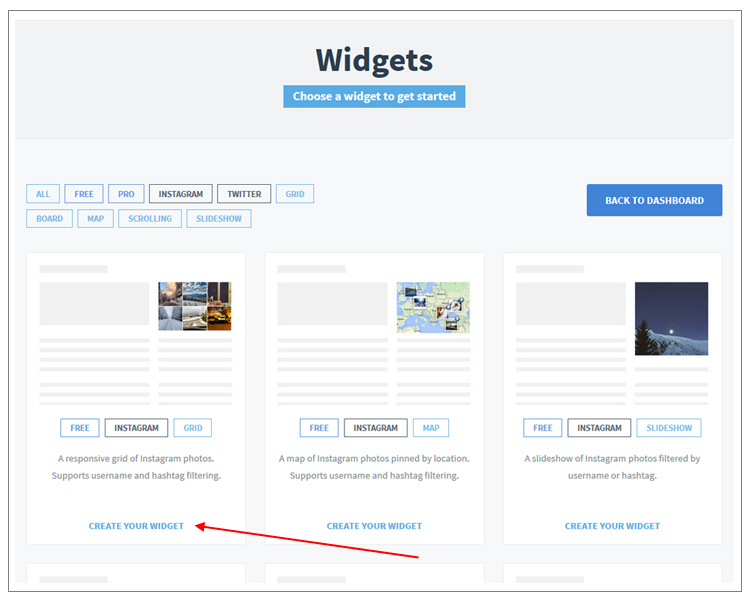
Second, this was probably the trickiest part. It wasn’t so clear what to click here on the widget screen. What I realized was that it’s displaying all your widget options. And you have to click the “Create Your Widget” button to select which style you want. I wanted a super simple one, so I went with a “responsive grid”.
Then you’ll be taken to the page to create the widget. All the info here is pretty self explanatory. Couple things that might not be clear while adding Instagram widget to your Shopify:
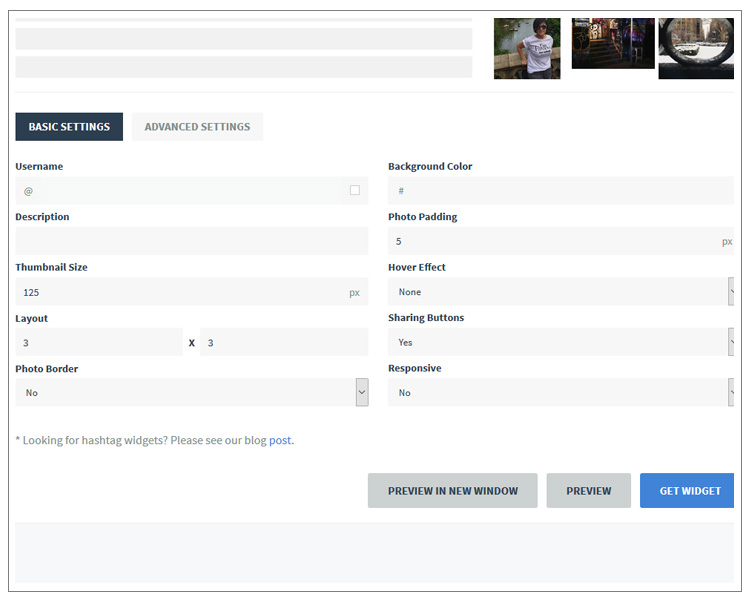
That’s it for setting up the widget. Once you like what you see click the “Get Widget” button and you can get your custom code. Not bad, huh?
Now you can preview your widget if you want, make sure it’s what you want, fix it if it’s not, and then move to the exciting part! Cutting and pasting.
SnapWidget gives you a button to click to get the code. Super easy, just click it and it’ll stick the code on your clipboard.

Lastly, go to your store and anywhere where you can put HTML, you can stick the code and have your Instagram feed show up. I am using the free theme from Shopify called Jumpstart, on the home page is a section which I renamed to Instagram. It comes from a page, so I navigated to my Pages, clicked it to edit it and then selected the “show html” button.
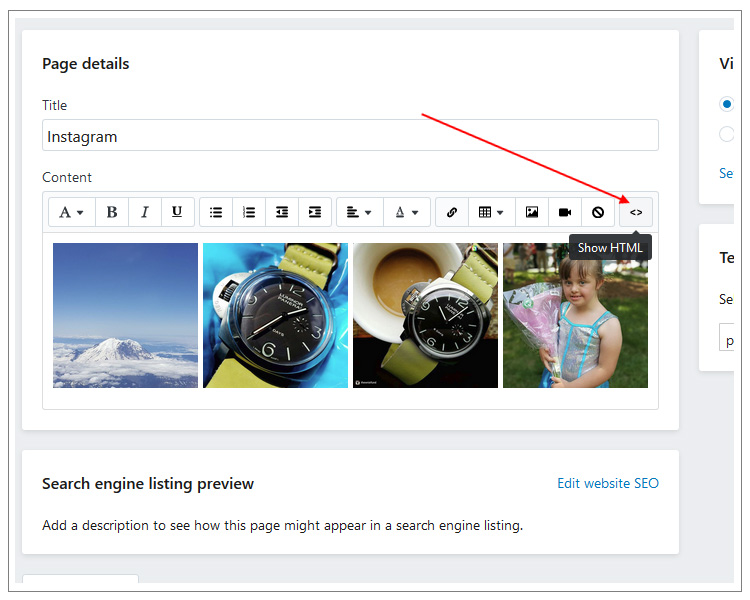
This is where the magic happens – now you have your Instagram on Shopify! If you’re on a PC, to paste in the code just hit “ctrl-v” and booyah it’s in the there. Sorry if you’re on a Mac, I ain’t got nothing for you. But it’s probably something similar.
Now, just save the page and enjoy your real time Instagram feed for free!
See also article: How To Give Store Credit on Shopify!
ByteStand – Amazon to Shopify in One Click
FBA Shipping by ByteStand – Dynamic shipping prices direct from Amazon
About the author


We're here to help!
Monday-Friday 9AM to 6PM Eastern US time
 Call us
 Email Us anytime
 Live Chat in real-time
  Schedule a Video Call

 READ
READ


